Gradient
Directional color gradient with adjustable angle, interpolation, repeat, mirror, and an inline multi-stop color editor.
The Gradient node draws a directional color gradient across the frame. Set the angle, the color stops, and how the ramp repeats — useful as a background, a color source, or a value ramp to drive other operators.
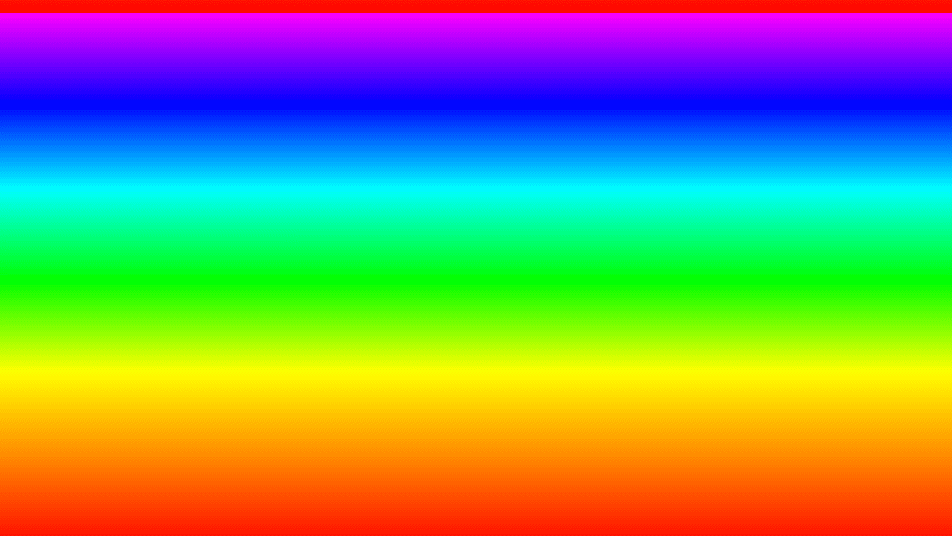
- One texture output; two optional texture inputs (domain warp and composite)
- Angle, interpolation, repeat, mirror, offset, and width controls
- Colors are set in an inline gradient editor in the parameters panel
- Found in the node graph under Generators as Gradient
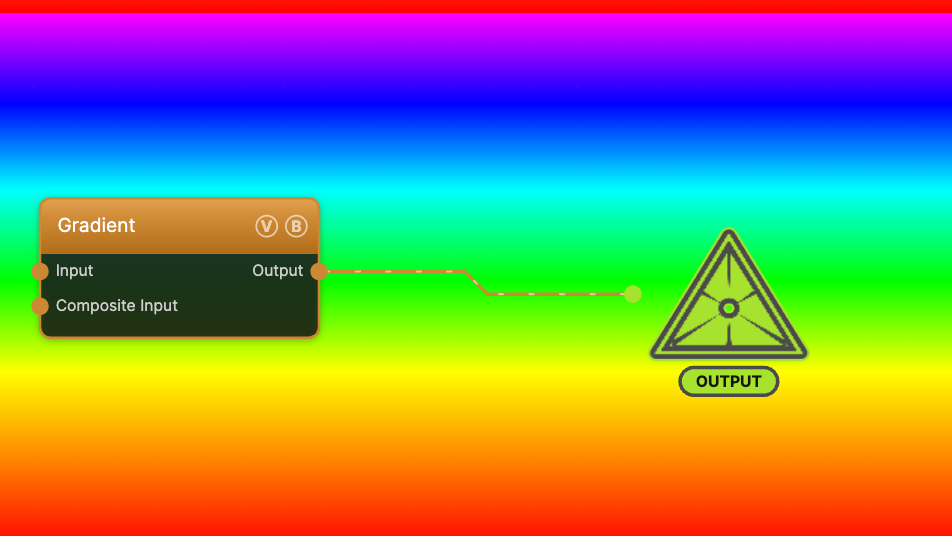
The image on the right is the example patch itself — drag and drop it onto the app (or load it with File → Load) to open the full graph.
Inputs and outputs
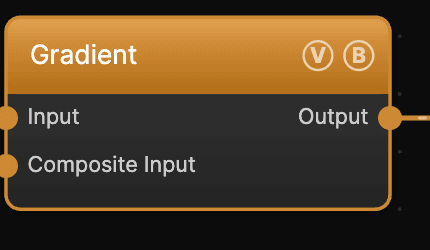
| Port | Type | Purpose |
|---|---|---|
| Displace | Texture | Domain warp: the red and green channels push the sample coordinates by Displace Amount |
| Composite Input | Texture | Composited under the output with Composite Mode and Composite Mix, which appear once the port is wired |
| Output | Texture | The RGB gradient |
Parameters
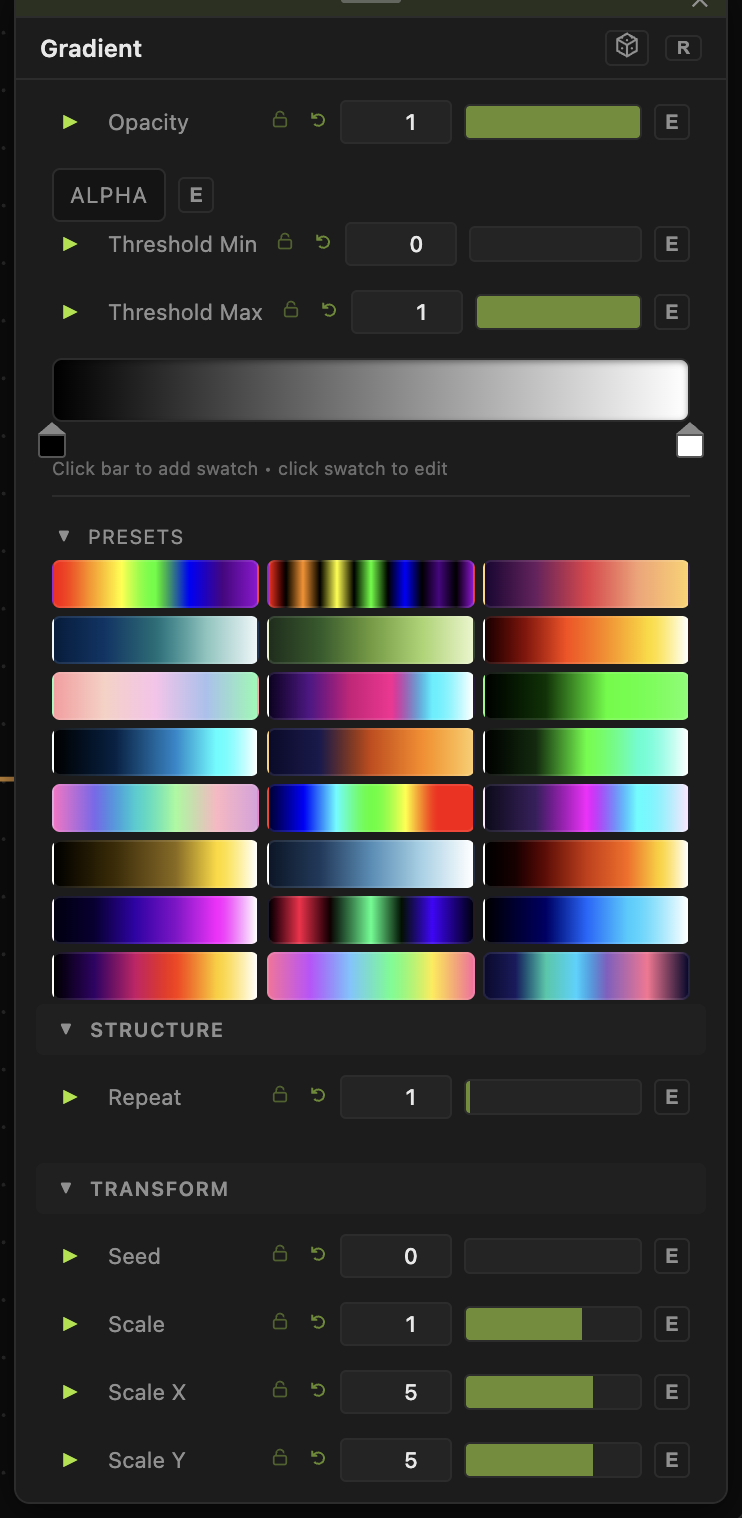
Opacity, Blend Mode — the standard operator header; see Perlin Noise.
Colors
The gradient's colors live in the inline gradient editor in the parameters panel. It seeds a rainbow the first time you select the node; click a stop to recolor it, or double-click the bar to add stops.
Shape
- Angle (0–360, default 0) — the direction of the ramp.
- Interpolation — Linear, Smooth, Cosine, or Stepped transitions between stops.
- Repeat (0.5–20, default 1) — how many times the ramp tiles across the frame.
- Mirror — reflect each repeat so the ramp ping-pongs instead of hard-resetting.
- Offset (−1 to 1) — slide the ramp along its direction.
- Gradient Width (0.1–10, default 1) — stretch or compress the ramp within each repeat.
Transform
- Offset X / Offset Y (−20 to 20) — pan the ramp.
- Rotation (0–360) — spin the ramp around the center. It adds to Angle.
The gradient has no Seed or Scale sliders. Repeat and Gradient Width set the size of the ramp, and Angle sets its direction.
Every slider has a per-parameter animation bar, so any of these can be animated, audio-driven, or MIDI-mapped — see Parameters and Controls.
Troubleshooting
Ramp looks banded — set Interpolation to Smooth or Cosine; Stepped is intentionally hard-edged.
Only part of the ramp shows — lower Repeat and set Gradient Width to 1 to fit one full ramp across the frame.