SDF Camera
The ray-generation rig for SDF Render — perspective, orthographic, or fisheye lens, fly or orbit navigation, aim ports, and depth of field.
SDF Camera decides where the rays for an SDF scene start and which way they point. It is optional: without one, SDF Render uses its own default view with full viewport navigation.
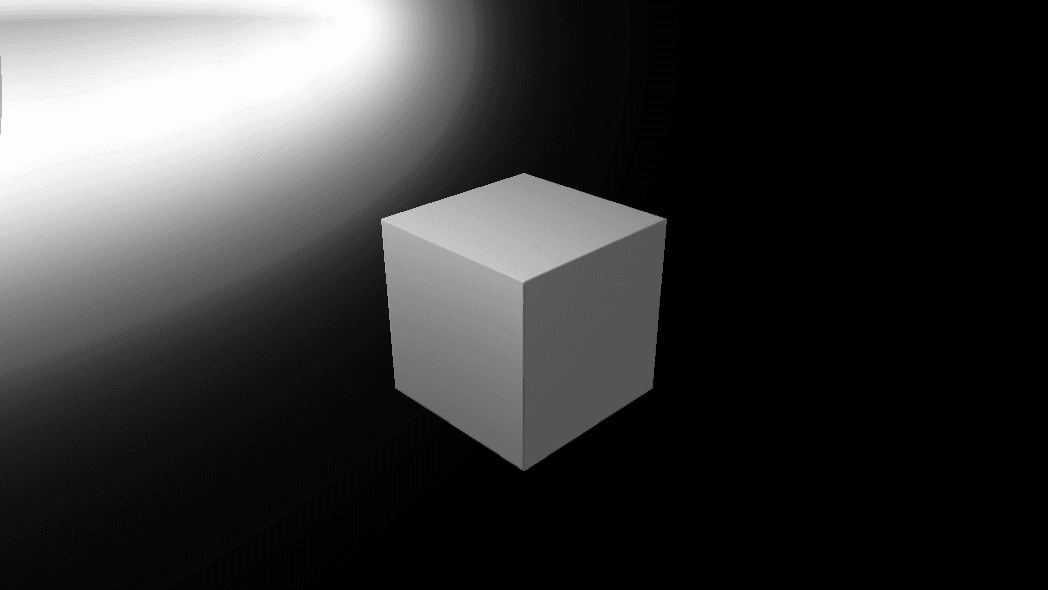
- Lens: Perspective, Orthographic, or Fisheye up to 360°
- Navigation: Smooth Fly (default), Orbit, or Fixed
- A Depth of Field block identical to the surface Camera's
- Found under SDF → Render in the operators panel
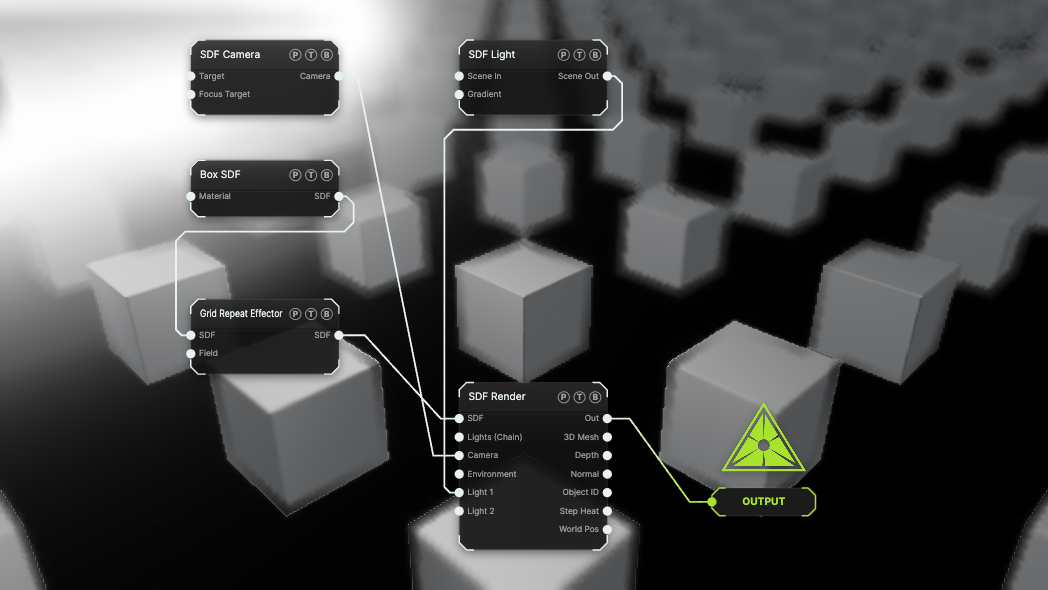
The image on the right is the example patch itself. Drag and drop it onto the app, or load it with File → Load, to open the full graph. A grid of boxes is viewed through a fixed camera with Depth of Field at f/0.8.
Inputs and outputs
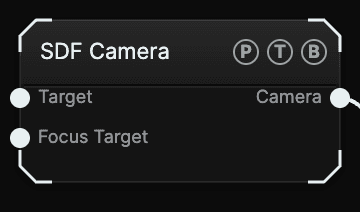
| Port | Type | Purpose |
|---|---|---|
| Target | Any | An SDF shape, a surface mesh, or a particle system to aim at. Used when Orient By is Look At Target. |
| Focus Target | Any | The object the depth of field focuses on when Focus is Auto. |
| Camera | SDF | Wire it into SDF Render's Camera port, or into an SDF Multicam slot. |
Parameters
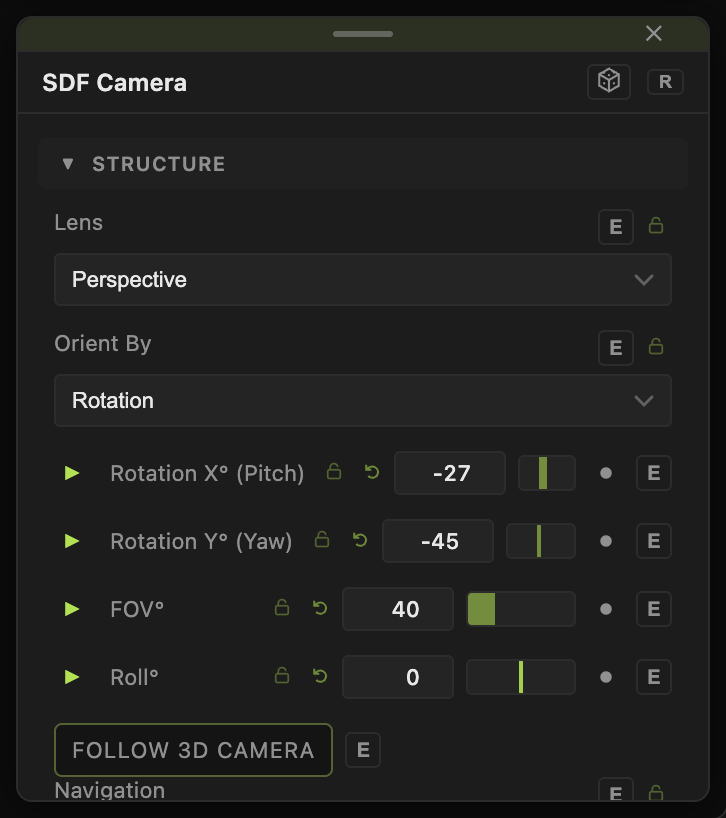
- Lens — Perspective (default) with FOV° (5–140, default 40); Orthographic with Ortho Scale (default 3); Fisheye with Fisheye FOV° (30–360, default 180).
- Position X / Y / Z (default 3.2, 2.4, 3.2) — the eye. This is the home pose that H returns to.
- Orient By — Rotation (default) exposes Rotation X° (Pitch) (default −27) and Rotation Y° (Yaw) (default −45). Look At Target exposes Target X / Y / Z instead, or uses the wired Target port.
- Roll° (−180 to 180, default 0).
- Follow 3D Camera (default off) — adopts the pose of a surface Camera in the same patch, read-only. Navigate the surface viewport and the SDF render follows.
- Navigation — Smooth Fly (default): drag to look, WASD and QE to move while the pointer is over the viewport, H to reset to the parameters. Fly Speed (default 6) and Look Speed (default 1). Orbit adds Auto-Rotate (Orbit) (−4 to 4, default 0). Fixed (params) locks the view to the parameters.
- Depth of Field toggle, with DoF Blend, Focus (Auto or Manual Distance), Focus Distance, Aperture (f-stop) (0.5–16, default 2), Max Blur (px), Bokeh Shape (Round or 3 to 8 blades), Bokeh Rotation, and Bokeh Sparkle.
The position, rotation, target, FOV, roll, and DoF floats all carry a per-parameter animation bar, so a camera move can be keyframed or driven by a modifier.
Examples
Turntable — Navigation Orbit, Auto-Rotate (Orbit) 0.5.
Dome master — Lens Fisheye, Fisheye FOV° 180, pointed straight up with Rotation X° (Pitch) 89.
Rack focus — Depth of Field on, Focus Manual Distance, animate Focus Distance between two objects.
Troubleshooting
The camera snapped back — H resets flight to the parameter pose. Flight is runtime only; the saved pose is always the parameters.
Follow 3D Camera stays off — it needs a surface Camera in the current graph that has rendered at least once. The node shows a hint when none is found.