Effects
Halftone
Prints the picture as a screen of dots whose size follows brightness.
The Halftone node turns tone into dot size on a rotated grid, the way an offset press does.
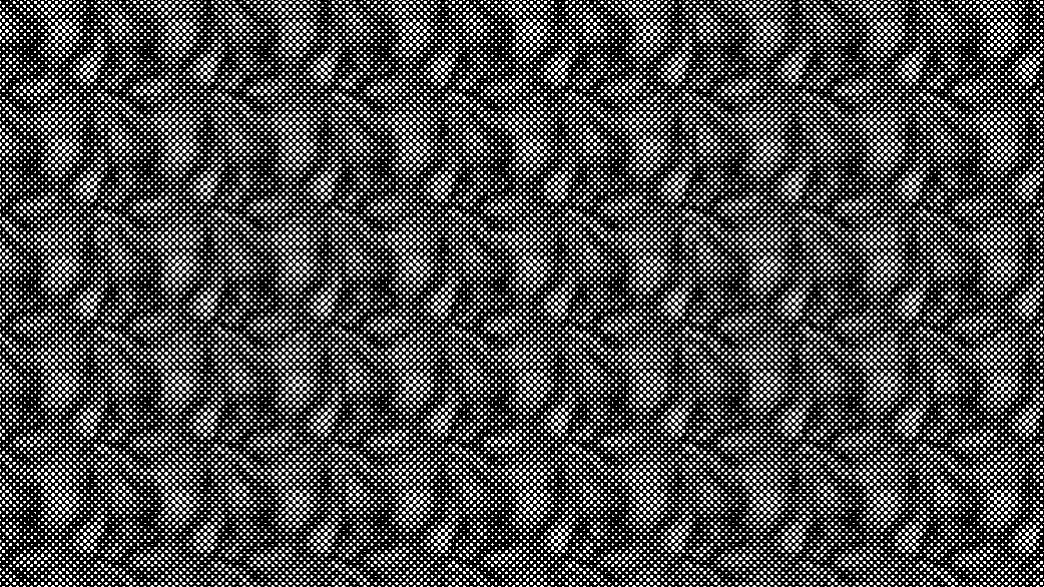
- Dot Size and screen Angle
- Found in the node graph under Post FX → Stylize
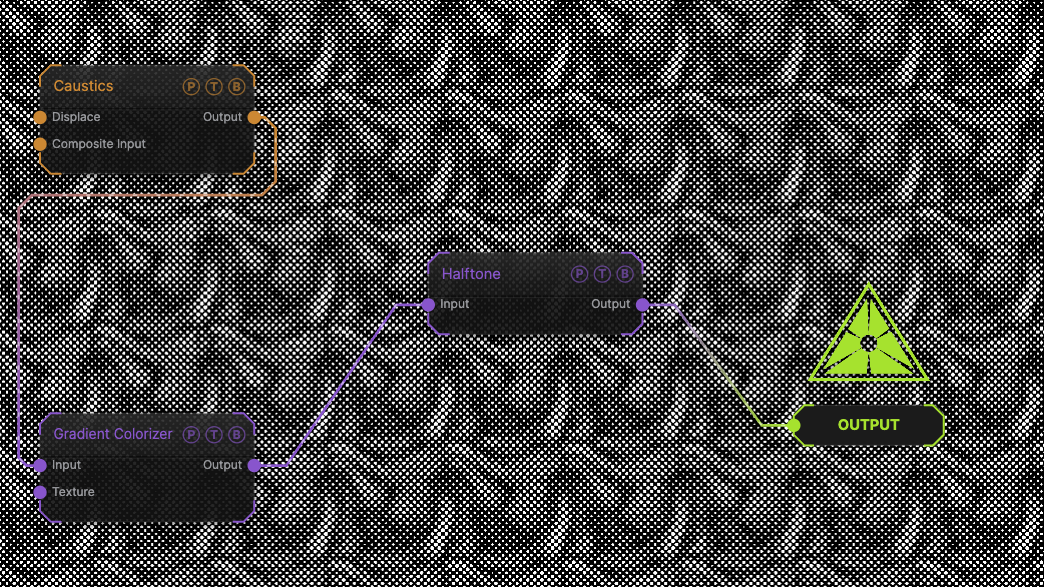
The image on the right is the example patch itself. Drag and drop it onto the app, or load it with File → Load, to open the full graph. A Caustics field, run through a Gradient Colorizer, at the default 5-pixel, 45° screen.
Inputs and outputs
| Port | Type | Purpose |
|---|---|---|
| Input | Texture | The picture to process. |
| Output | Texture | The result. |
Parameters
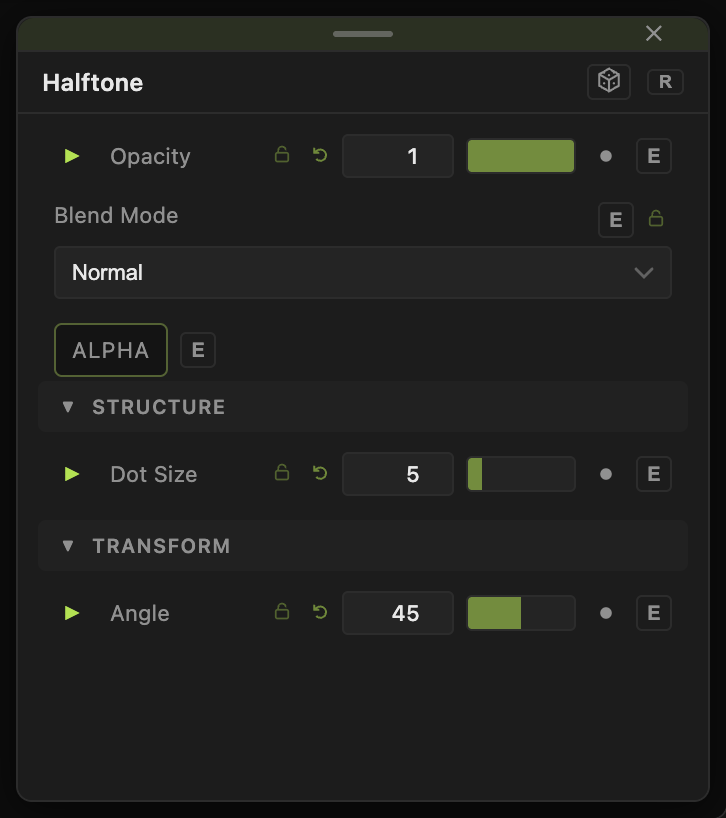
Opacity, Blend Mode, and Alpha are the standard operator header; see Parameters and Controls.
- Dot Size (1–32, default 5) — the screen spacing.
- Angle (−90 to 90, default 45) — rotation of the screen.
Every slider has a per-parameter animation bar, so it can be animated, audio driven, or MIDI mapped.
Examples
Comic print — Dot Size 8 after Posterize.
Troubleshooting
Moiré patterns — the screen beats against the source grid. Change Angle or Dot Size.